

How to get an LTL quote
Getting LTL quotes from carriers takes a few minutes from your FreightSimple dashboard. Enter your pickup and delivery details, describe your shipment, and you'll see real-time options from every carrier available on your lane.
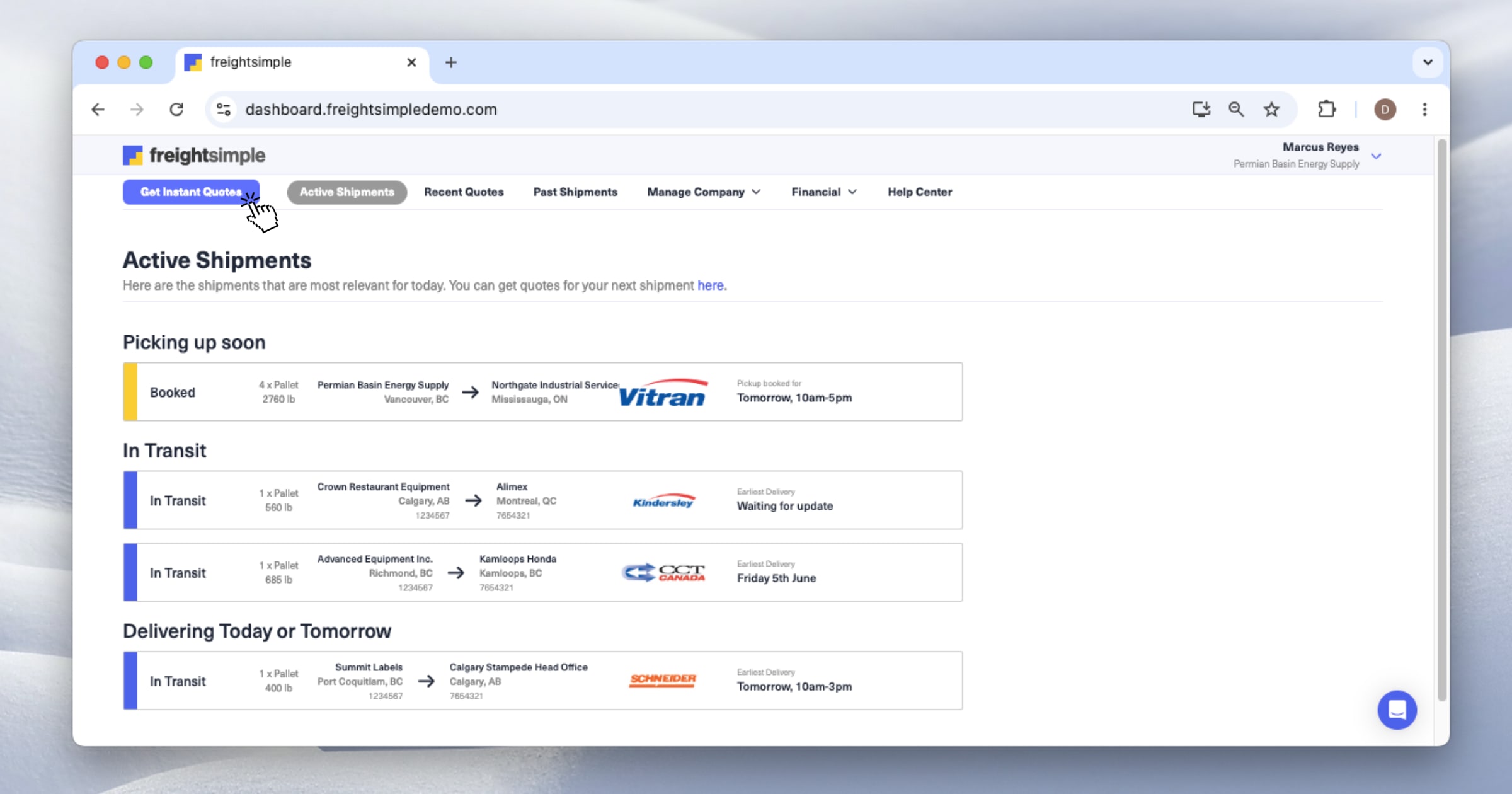
- Open Get Instant Quotes from the top menu.
- Fill in pickup, delivery, and shipment details.
- Click Get instant quotes from carriers and compare options.
- Pickup and delivery addresses. Postal codes work, but full addresses help carriers price more accurately.
- Pickup date. You can request a pickup within the next month.
- Shipment details. Number of pallets, dimensions, weight, and a description of what you're shipping.
- NMFC code (if you have it). Optional but helps with accurate classification. If you don't know yours, you can leave it blank and our team can help.
Open Get Instant Quotes
From the top menu of your FreightSimple dashboard, click Get Instant Quotes. This opens the quote request form.
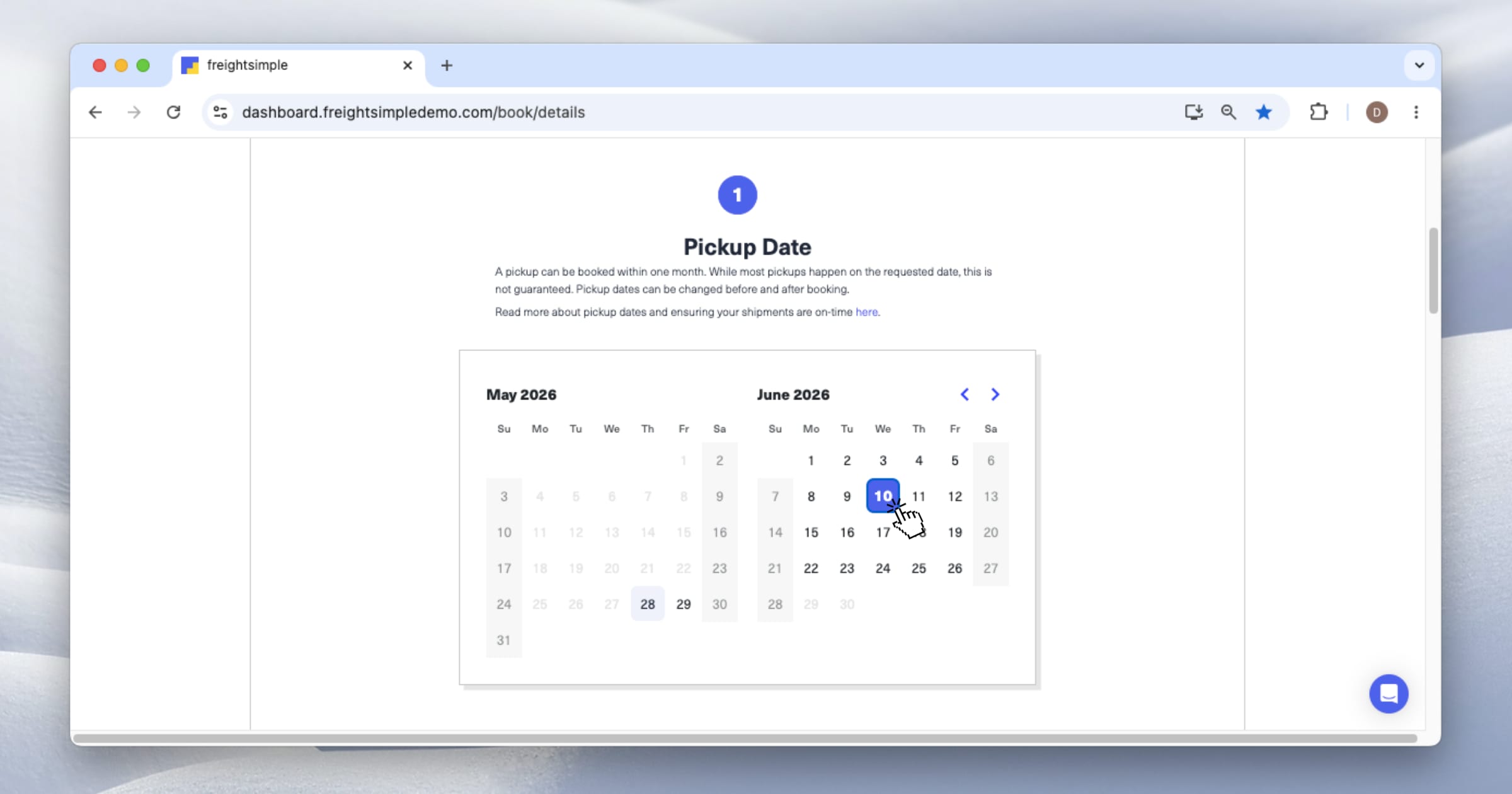
Choose your pickup date
Select when you'd like the carrier to pick up your shipment. You can book a pickup up to one month in advance. Most pickups happen on the requested date, but this is not guaranteed. You can change the pickup date before or after booking.
Learn more in Pickup Date.
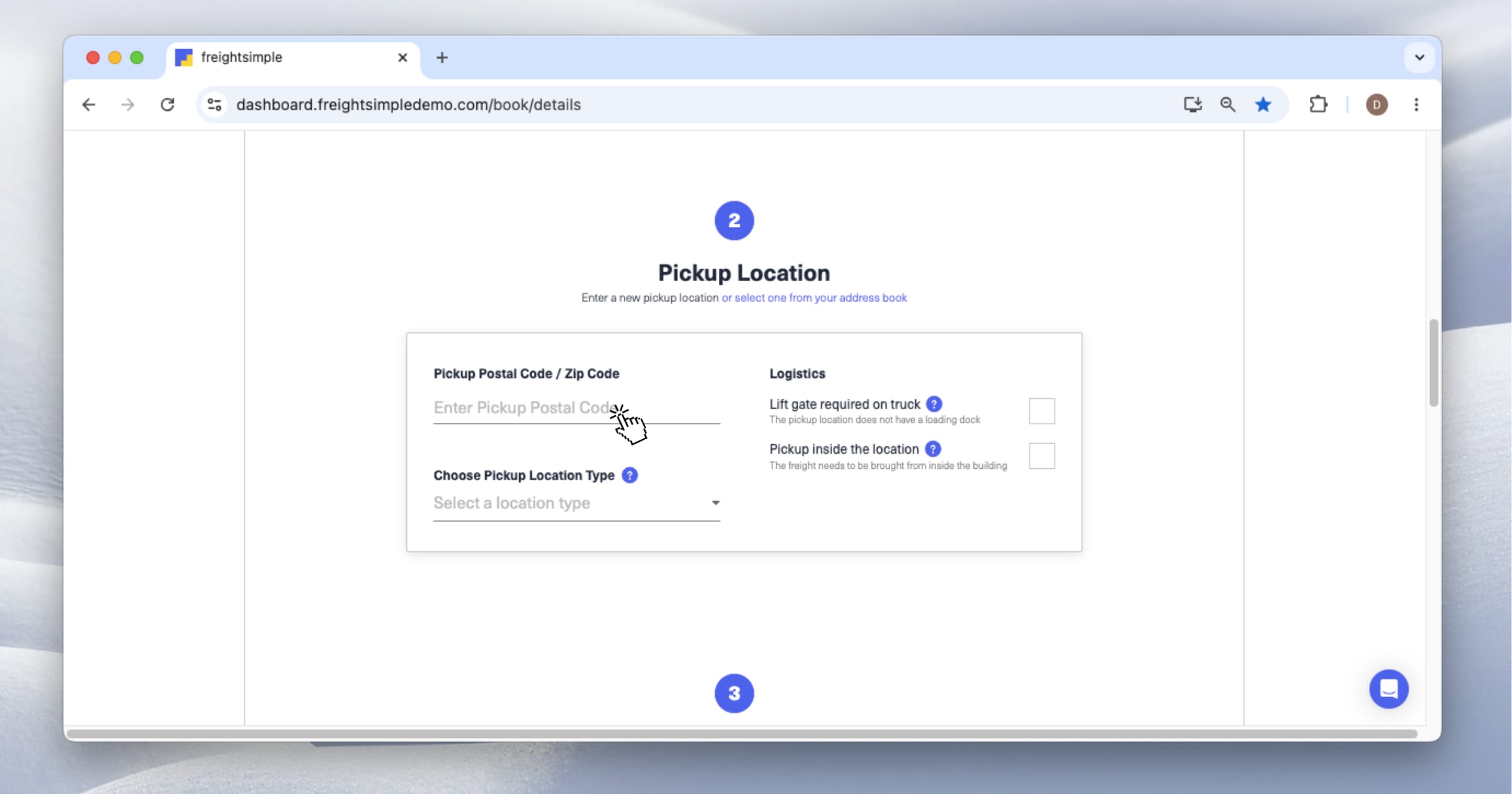
Enter pickup and delivery locations
Add the address where the freight will be picked up and where it needs to be delivered. You can enter a new address or pick from your saved Address Book.
Specify whether each location is residential or business, whether a loading dock is available, and any other relevant details. Accurate location info helps avoid additional charges later.
Learn more in Pickup and Delivery Details.
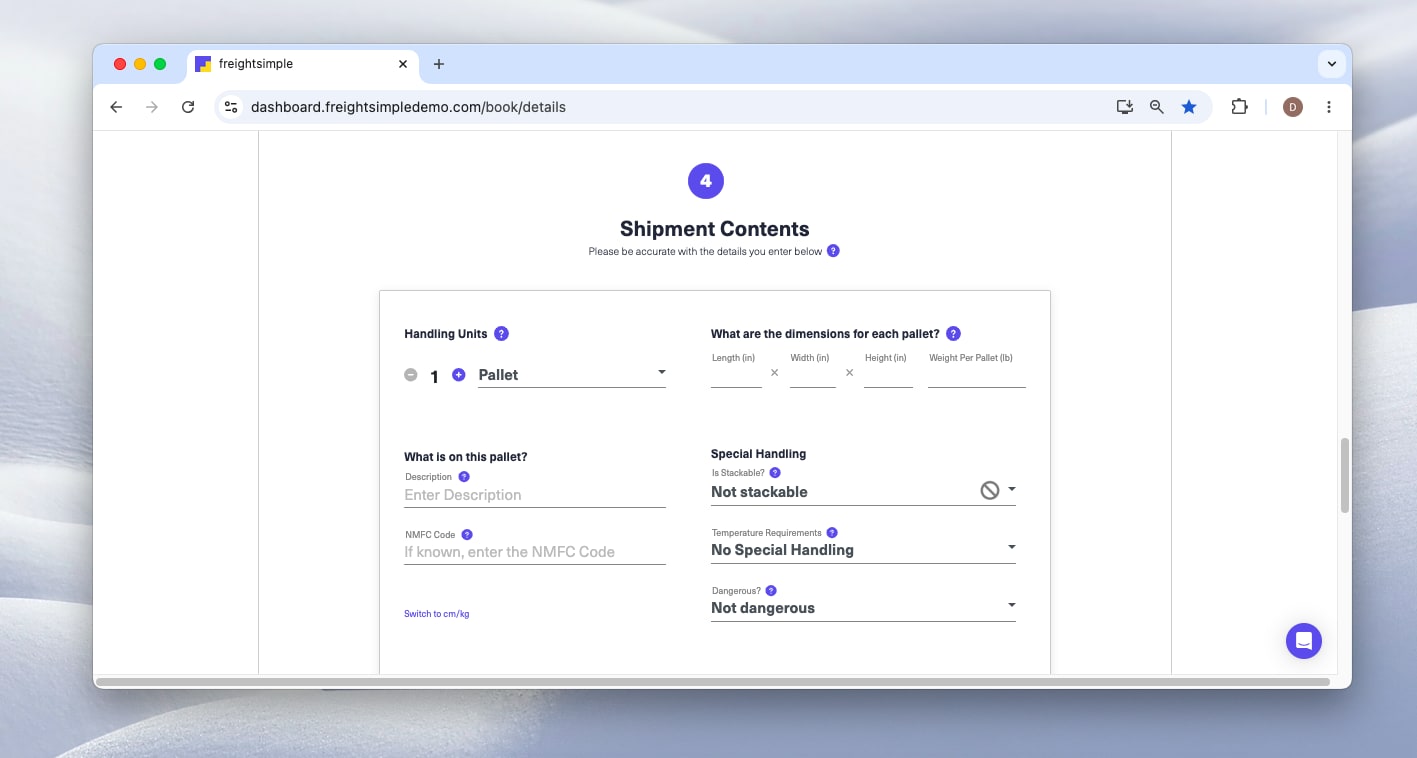
Add your shipment contents
Describe what you're shipping. You can pick a saved commodity to auto-fill the fields, or enter the details manually.
For each handling unit (pallet, crate, etc.), provide:
- Description. What's on the pallet.
- NMFC code. If you have it. Optional.
- Dimensions. Length, width, and height. Toggle between inches and centimeters.
- Weight per pallet. In pounds or kilograms.
- Special handling. Is the freight stackable, does it need temperature control, is it dangerous?
The more accurate these details, the more accurate your quote. Learn more in Shipment Contents.
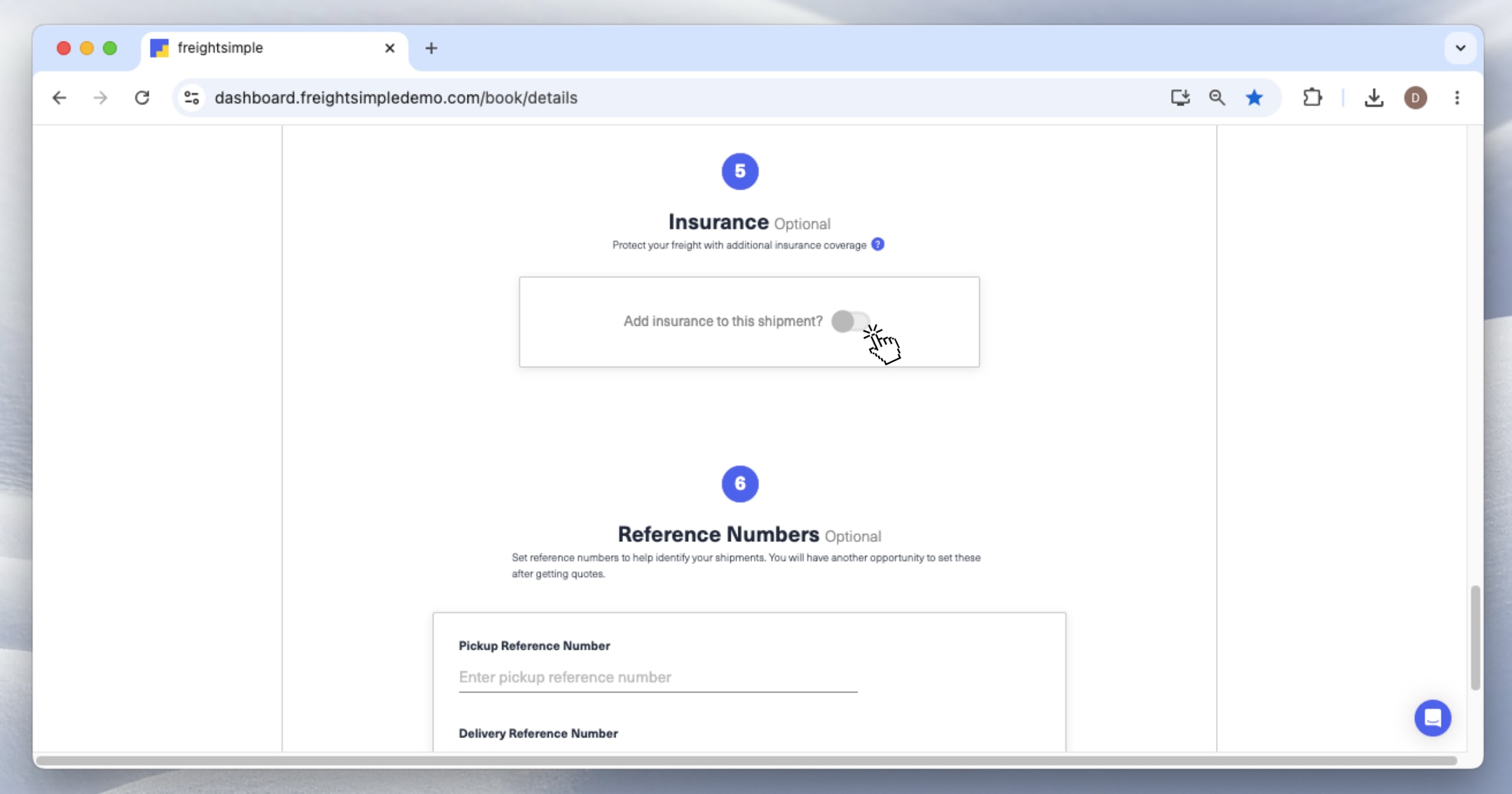
Add insurance and reference numbers (optional)
Insurance. We recommend adding insurance to protect your freight. Coverage protects you in case of damage or loss during transit.
Reference numbers. Add any internal reference numbers (PO numbers, customer IDs, etc.) to help identify your shipment later. You'll have another chance to add these after getting quotes.
Learn more in Insurance.
Get your quotes
Click Get instant quotes from carriers. Within seconds, you'll see a list of available carriers with their prices and service levels for your lane.
From here you can compare options, expand each quote for details, and either book a shipment or save the quote for later.
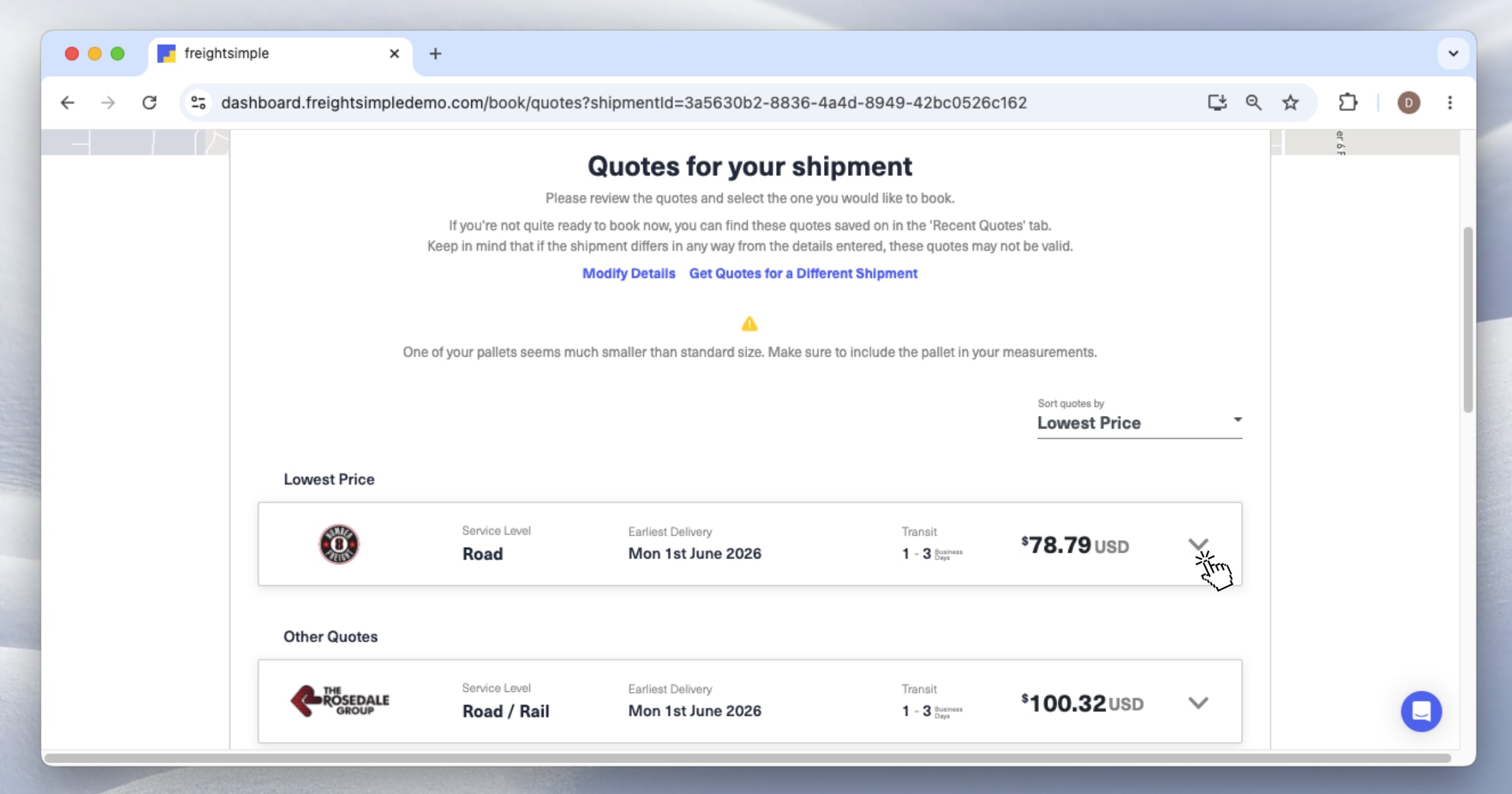
- Compare carrier options. Each quote shows the carrier, price, service level, and estimated transit time.
- Expand for details. Click any quote to see the full breakdown.
- Book now or save for later. You can book a shipment right away or save the quote to compare and book later.
- Quotes are time-sensitive. Prices may change if you wait too long to book. If a saved quote has expired, you can always request a fresh one with the same details.
How long does it take to get quotes?
Quotes are typically delivered in seconds. The button is labeled Get instant quotes from carriers for that reason. If a quote takes longer than expected or doesn't appear instantly, see Why Didn't I Get an Instant Quote?
Can I save a quote without booking it?
Yes. After getting your quotes, you can save them and come back later to compare or book. Quotes have a validity window, after which prices may change.
Why don't all carriers show up?
The carriers shown depend on your lane (pickup and delivery locations) and the specifics of your shipment. Not all carriers serve every lane, and some carriers may not provide instant quotes for certain freight types. See Why Didn't I Get an Instant Quote? for details.
Can I edit my quote after submitting?
You can start a new quote with adjusted details at any time. If you've booked a shipment based on a quote and need to make changes, contact our team at support@freightsimple.com.
What if I don't know the NMFC code?
You can leave it blank. The NMFC code helps carriers classify your freight accurately, but it's not required to get a quote. If you're unsure, our team can help you find the right code at support@freightsimple.com.
Will the price change after I book?
If the details you entered when requesting the quote are accurate, the price will not change. If there are discrepancies (different weight, dimensions, or services needed at pickup or delivery), additional charges may apply. See Additional Charges.
Was this article helpful?
Thanks for letting us know.
What was missing?
Sorry about that. Our team can answer it directly.
Find who to contact