

Notification preferences
Choose which email updates each person on your account receives, so the right people stay informed without overflowing anyone's inbox.
Prefer to watch? A quick walkthrough of setting notifications.
The two notification types
Each user on your account can be opted into either or both of these:
- Accounting notifications. Invoices and additional charges, sent as they happen.
- All shipment notifications. Booking and delivery updates for every shipment on your account, no matter who booked it.
Steps to set notifications for a user
-
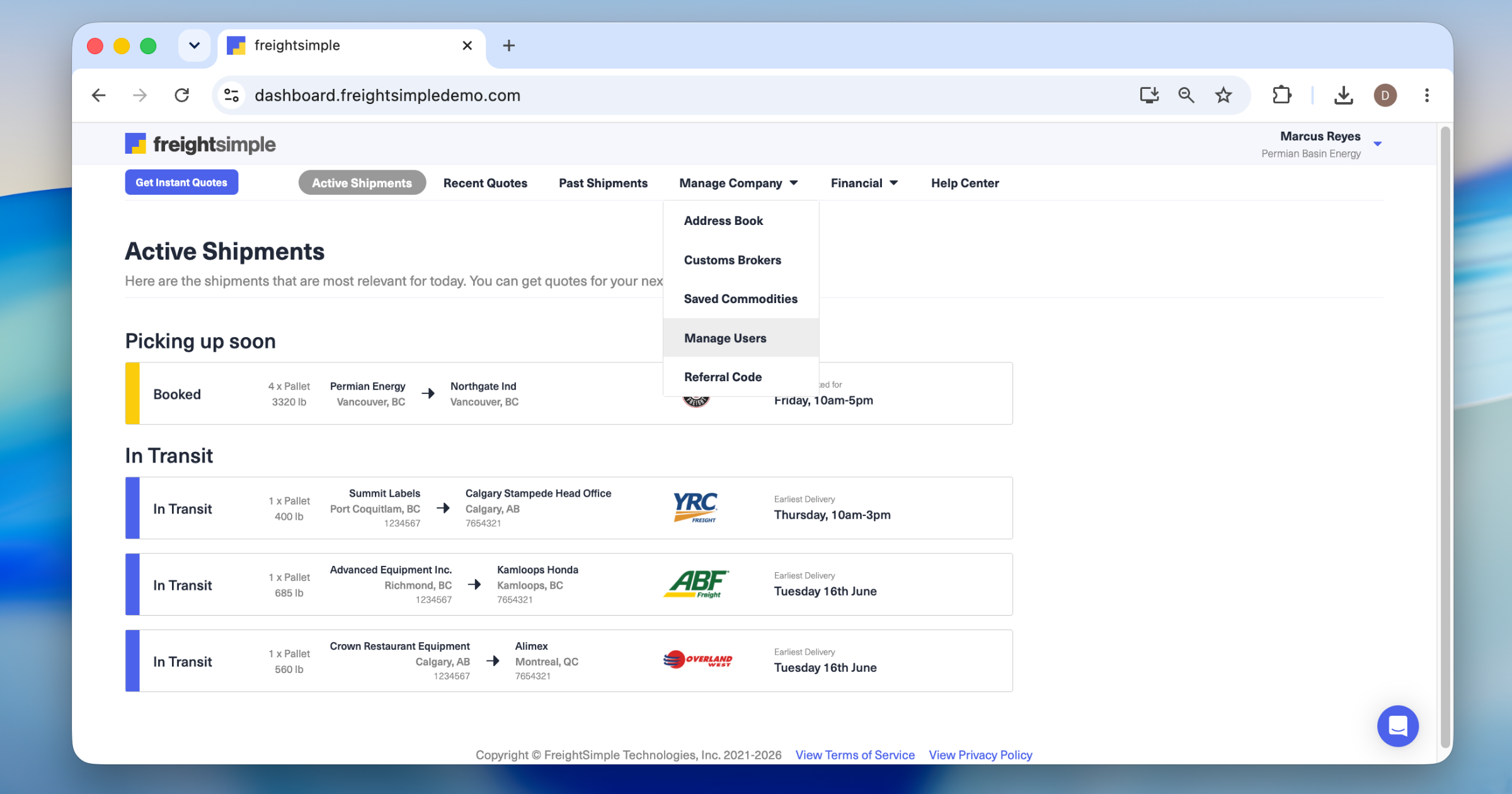
Open the Manage Users section
From your dashboard, click the Manage Company tab, then select Manage Users. You'll see everyone on your account listed here.
-
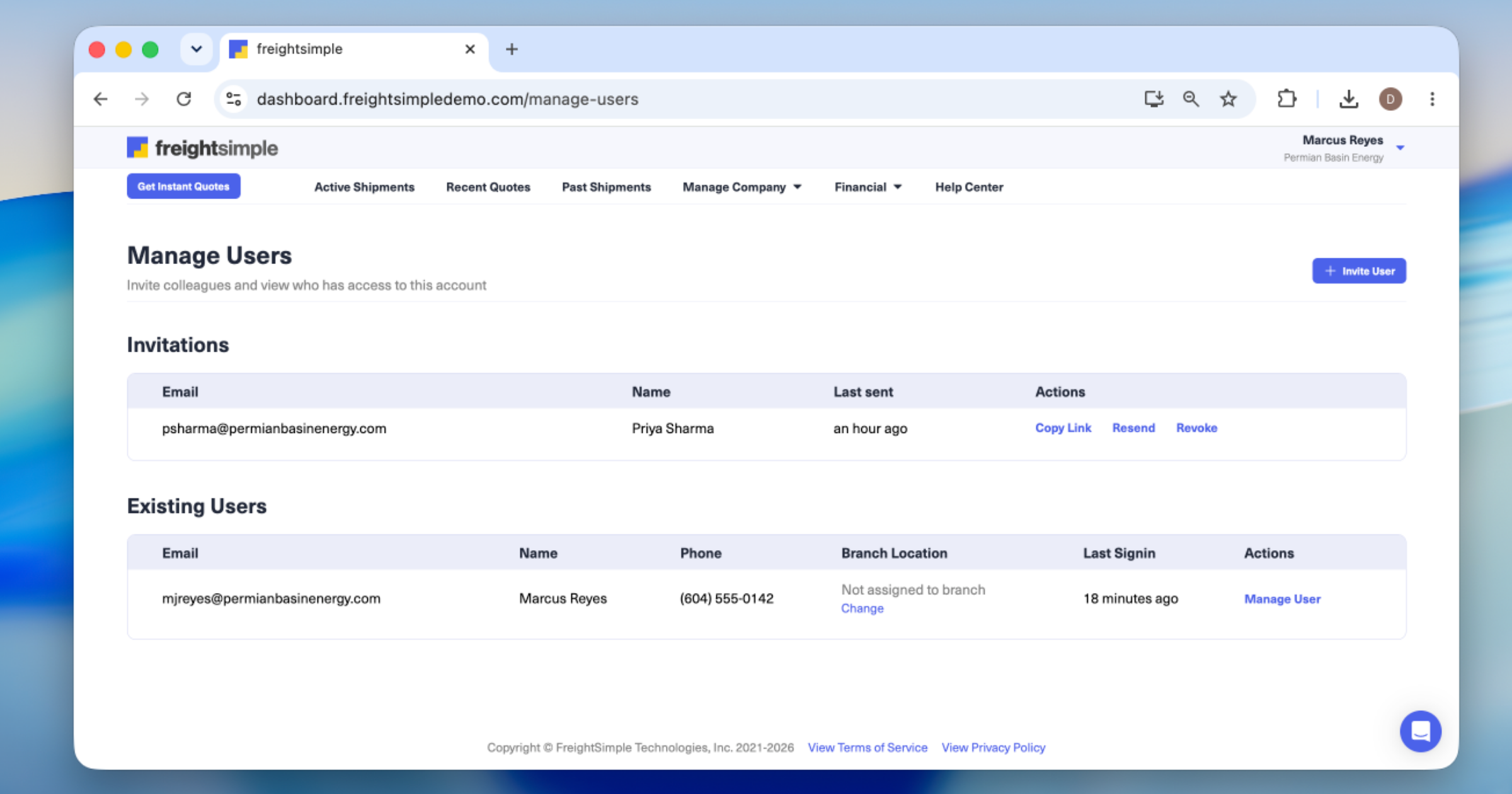
Open the person's settings
Click Manage User next to the teammate you want to update.
-
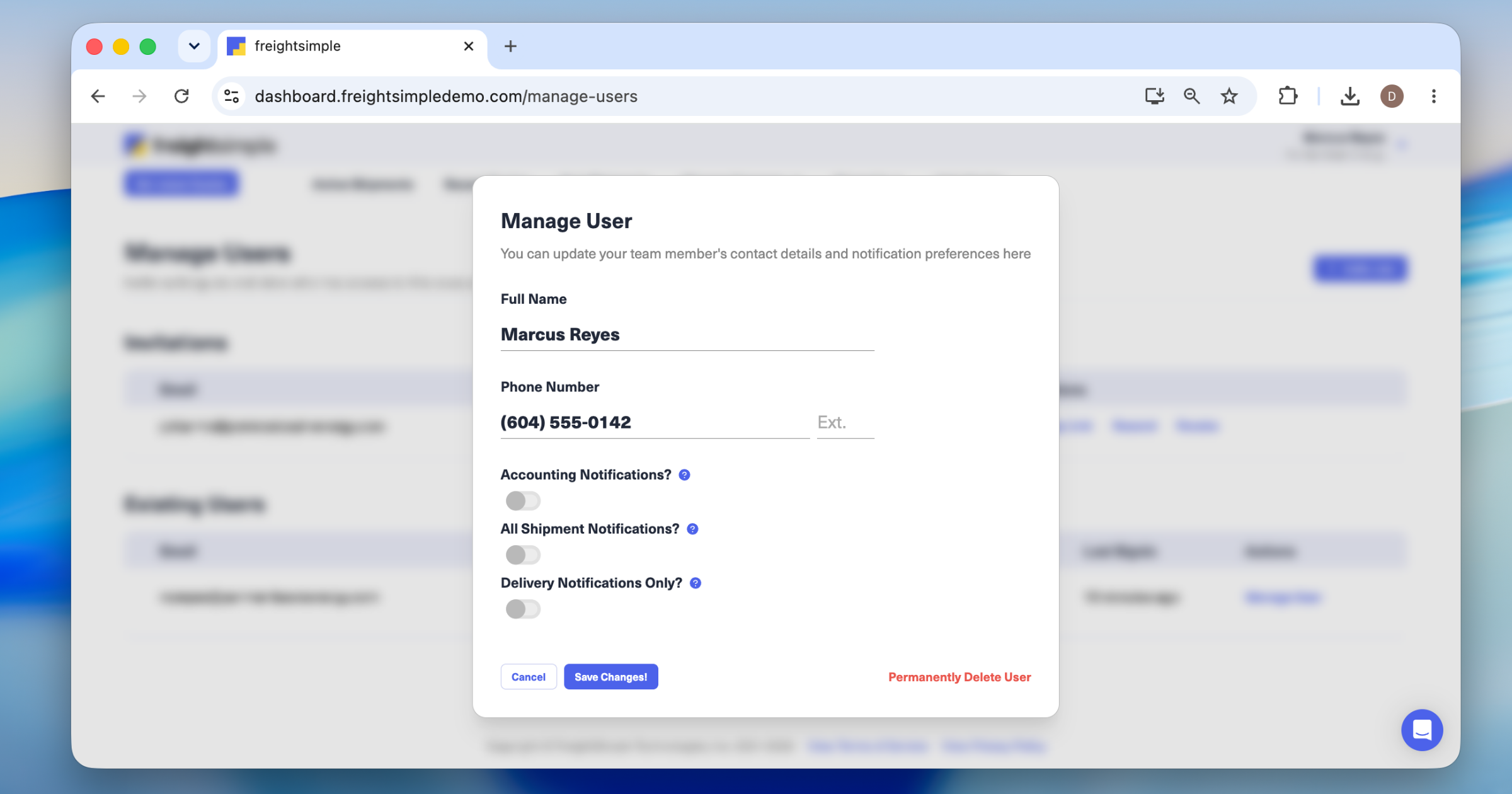
Choose their notifications
Toggle on Accounting notifications, All shipment notifications, or both. Repeat for each teammate so everyone has the right notifications turned on.
Who should get all shipment notifications
If your company ships frequently, all shipment notifications can produce a lot of email. Turn them on for people who need real-time updates, like operations leads or warehouse managers, and leave them off for occasional users.
Related articles
- Inviting a colleague. Add teammates to your account before setting their notification preferences.
Was this article helpful?
Thanks for letting us know.
What was missing?
Sorry about that. Our team can answer it directly.
Find who to contact