

How to file a claim
Claims are filed from your dashboard, against the shipment they belong to. Gather your photos and your commercial invoice first and the whole thing takes a few minutes.
File as soon as you discover the problem. Every carrier puts a time limit on claims, and a claim filed inside the window with incomplete paperwork is in far better shape than a complete claim filed late. We can add documents afterwards. We cannot move the deadline.
Prefer to watch? A quick walkthrough of filing a claim from your dashboard.
Two things to know first
- Delivery has to be confirmed. The Submit Claim option stays disabled until the shipment is marked delivered. If your freight has not arrived at all, or is missing and you need a loss claim, contact us instead of waiting for the button to become available.
- One claim per shipment. You cannot submit a second claim against the same shipment, so put everything into the one claim. If you discover more damage after submitting, send it to us and we will add it to the open claim rather than you starting again.
What to have ready
Supporting documents covers each one in detail.
- Photos of the damaged goods, the packaging inside and out, and the shipping labels. Up to 10 images.
- The vendor's original invoice showing the price of the claimed goods. A purchase order is usually not enough.
- Piece counts. How many pieces were affected, out of how many were shipped.
- A repair bill or an inspection report if you have one.
Keep the total size of everything you upload to 100MB or less, and the invoice itself to 25MB or less. Large files are the most common reason a submission fails partway through. Compress them if you need to.
Filing the claim
-
Sign in to your dashboard
Go to dashboard.freightsimple.com and sign in.
-
Find the shipment
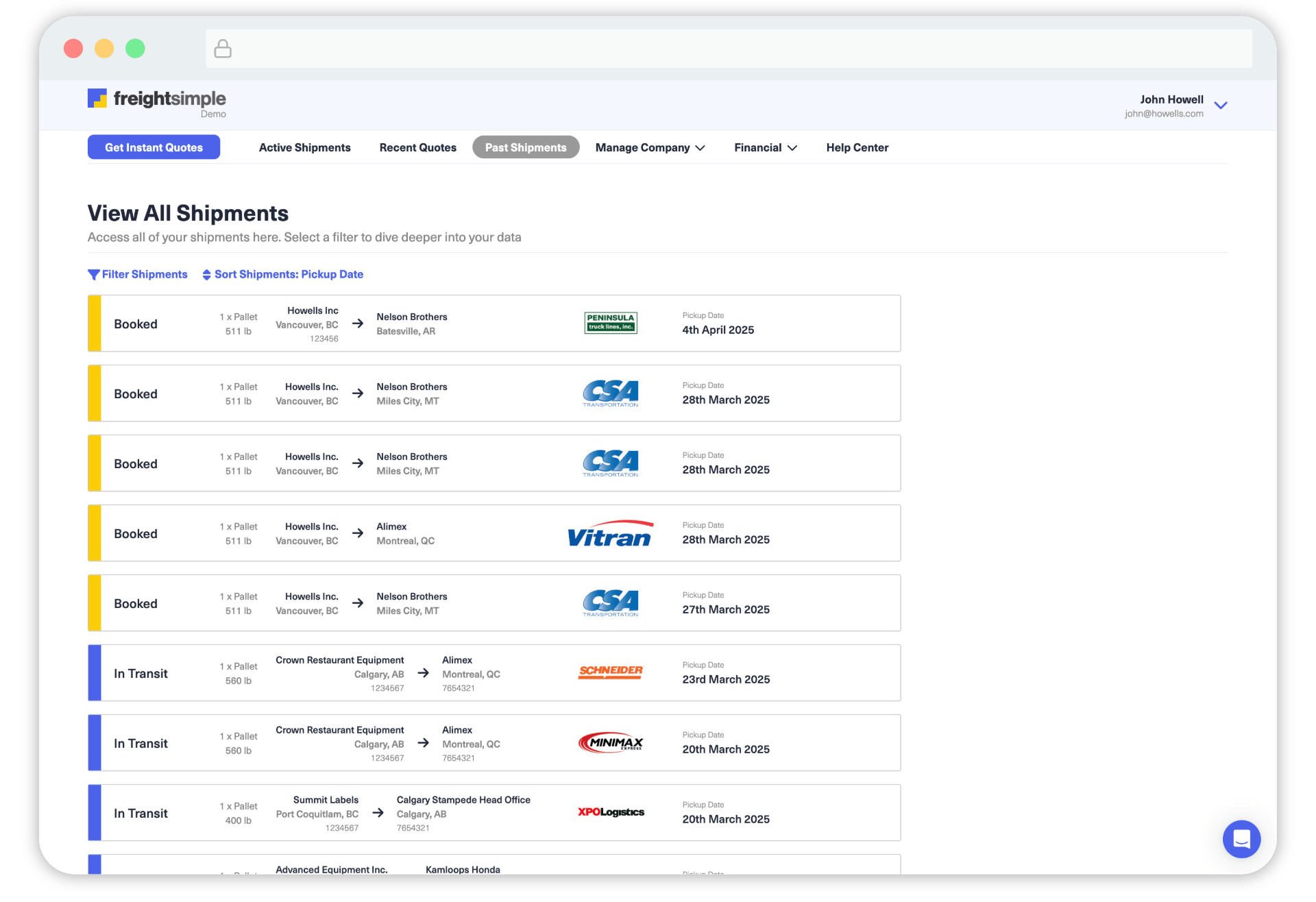
Click the Past Shipments tab in the top menu, then locate the shipment you are claiming against.
-
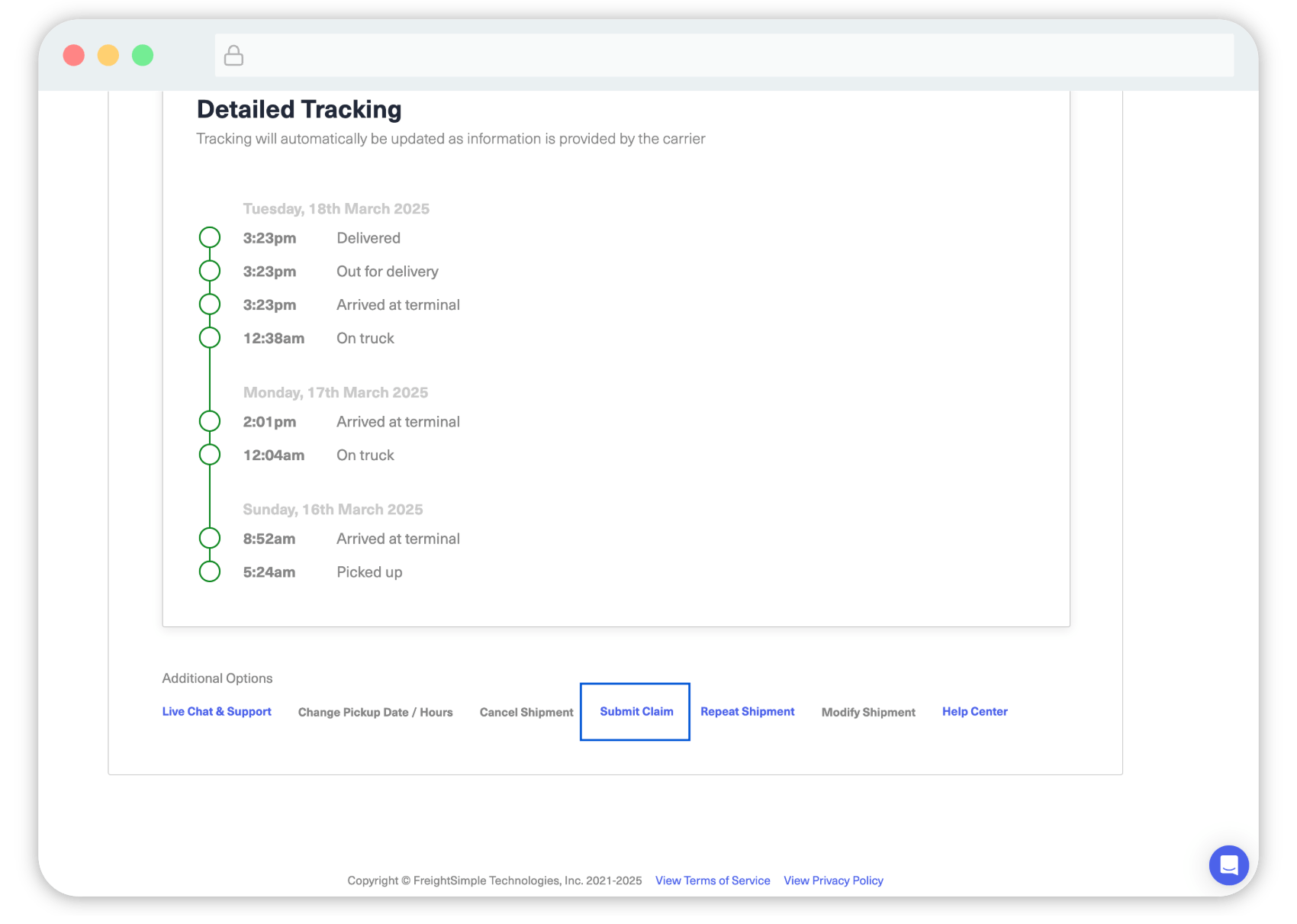
Scroll to Additional Options
Open the shipment and scroll to the bottom of the shipment details.
-
Click Submit Claim
Under Additional Options you will see Submit Claim. If it is greyed out, hover it and the tooltip tells you why: either delivery has not been confirmed yet, or a claim already exists for this shipment.
-
Choose the claim currency
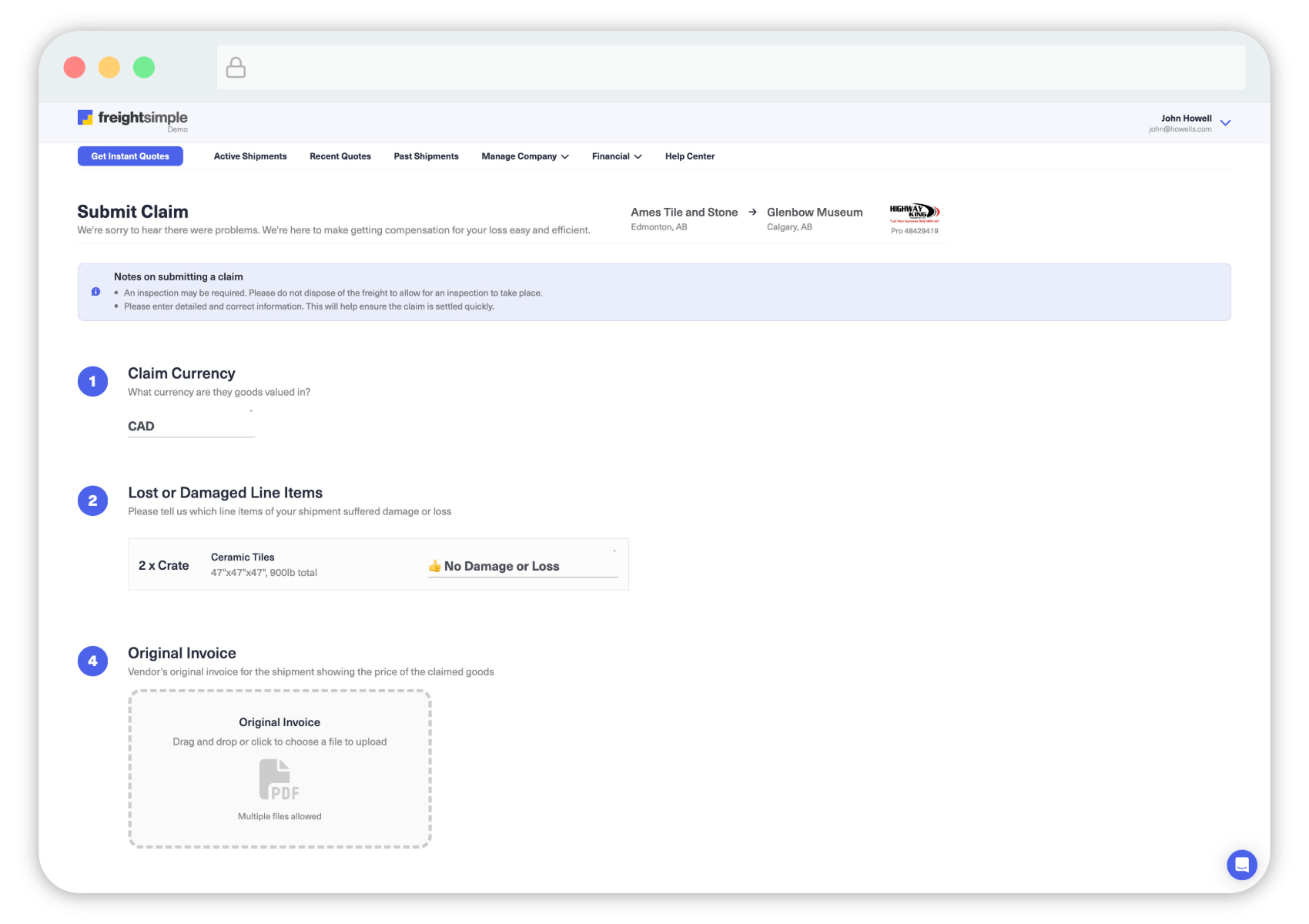
The currency your goods are valued in. Everything you enter after this is read in that currency, so set it before entering values.
-
Go through your freight, piece by piece
The form lists the freight from your booking and you work down it. For each line, say whether it was damaged, lost, or came through fine, then for the affected ones give the condition (new or used), how many pieces were affected out of the total, whether it can be repaired, and the value per piece. What you can claim for explains what each of these does to the claim.
-
Upload the original invoice
The vendor's original invoice for the shipment, showing the price of the goods you are claiming for. Keep this file to 25MB or less.
-
Upload photos and any other documents
Up to 10 photos. Other documents is where an inspection report or a repair bill goes.
-
Write the description
This is passed to the carrier, so write it for them. What you found, when you found it, and what condition the packaging was in. If damage was noted on the Proof of Delivery at delivery, say so here.
-
Add anything else we should know
The last field, Other, is for context you want us to have but that will not be shared with the carrier. Useful for background on the customer, the vendor, or a commercial situation we should be aware of while we handle the claim.
-
Submit
Our team picks it up from there.
What we do next
We review the claim to check that everything the carrier will ask for is present, and come back to you if something is missing. Once it is complete we acknowledge it in writing, complete the carrier's own claim form on your behalf, and submit the package to the carrier's claims department. If the shipment was insured, we file with the insurer in parallel.
From then on we handle the correspondence, including the follow-ups. See What happens after you file.
Filing without the dashboard
If you cannot get into the dashboard, or the shipment predates your account, email claims@freightsimple.com with the PRO number or shipment reference and what happened. We would rather open the claim from an email today than have you wait for access.
Was this article helpful?
Thanks for letting us know.
What was missing?
Sorry about that. Our team can answer it directly.
Find who to contact